

5 Desk Upgrades That Fixed My Chaotic Work-From-Home Setup
You spend a Sunday afternoon getting the desk exactly right. Monitor arm in place, plants in the corner, cables tucked neatly. Then Monday arrives, and by 10am there are three USB cables dangling off the side of the screen, the laptop is propped on a stack of books, and you’re reaching behind the monitor to swap an HDMI input. Again.
Remote work — especially for content creators, bloggers, and anyone running a dual-computer setup — breaks down at the desk level. These five upgrades fix the specific problems that cause that breakdown.
Why Most Home Office Desks Fall Apart After Six Months
The average remote worker didn’t plan their desk. They added things reactively: a second monitor when the laptop screen felt cramped, a USB hub when the ports ran out, a second keyboard when they started switching between two machines. The result is a desk that technically functions but never feels under control.
This isn’t a discipline problem. It’s an infrastructure problem.
Why Content Creators End Up With Two Computers
A MacBook Pro M3 handles Lightroom, Final Cut Pro, and Zoom calls without breaking a sweat. But push it into heavy multi-app production work — 4K DaVinci Resolve exports, large Photoshop files, background cloud uploads running simultaneously — and thermal throttling begins. Fan noise becomes an issue during recording. Battery drops below two hours under sustained load.
A dedicated desktop solves this cleanly. A custom PC with an RTX 4070 or an M4 Mac Mini handles render queues and long background tasks silently, without heat management problems. So content creators end up with both: the laptop for flexibility and client calls, the desktop for production work. Two machines, ideally sharing one desk.
That creates a concrete problem: how do you share one monitor, one keyboard, and one mouse between two computers without swapping cables throughout the day?
The Workflow Cost Nobody Mentions
Swapping an HDMI cable takes about 45 seconds. Trivial once. But if you switch between machines 10 times per workday — a realistic number for anyone toggling between a work laptop and a personal desktop — that’s 7.5 minutes of desk shuffling daily. Over 250 working days, it adds up to more than 31 hours spent reaching behind a monitor.
The ergonomic cost compounds the problem. Reaching awkwardly to ports behind monitors strains your shoulder and neck. Reconnecting cables in dim under-desk space is hard on your eyes. None of this is dramatic in isolation — but the friction accumulates until the desk feels like something you manage rather than something you work at.
What a Clean 2026 Desk Setup Actually Requires
The setups that hold up — organized in photos and functional in practice — share one design principle: single-cable thinking. Every computer connects via one cable to a central hub or switch. Every peripheral connects to that hub. Switching between machines is a single button press, not a cable-swapping operation.
That principle is made possible by KVM technology. Most desk setup guides mention it in passing. It deserves more than a mention.
Tip: Before buying any new desk tech, list every peripheral you actually use on a typical workday. For most people the real list is: one or two monitors, one webcam, one keyboard, one mouse, and occasionally an SD card reader. Build around what you actually use, not what looks good in a flat lay photo.
KVM Extenders vs. KVM Switches: What the Difference Actually Means

KVM stands for Keyboard, Video, Mouse. A KVM device lets two or more computers share those peripherals without moving cables. But there are two distinct categories, and buying the wrong one is a $300+ mistake worth avoiding.
What Each Type Is Built For
A KVM extender solves a distance problem. It sends video, USB, and audio signals over Cat6 or Cat7 ethernet cable across long cable runs — useful when your computer lives in a rack, a server closet, or a different room from your display. The extender bridges that gap without signal loss.
A KVM switch solves a sharing problem. Both computers are near the desk. You just want to toggle between them at the press of a button — same monitor, keyboard, and mouse serving both machines.
The AV Access 8K KVM HDMI Extender priced at $359.99 extends signals up to 328 feet over Cat6/7, supporting 8K@60Hz and 4K@120Hz. Four USB 2.0 ports on the receiver let you connect keyboard, mouse, webcam, and an audio interface at the display end — not at the PC tower. One-Way PoC powers the receiver through the same Cat cable carrying the signal, so no second outlet is needed near the screen. Audio extraction is built in for connecting external speakers or a headphone amp. HDCP 2.3 compliance handles protected streaming content without compatibility issues. EDID management communicates your monitor’s capabilities to the source computer automatically, eliminating manual resolution configuration when switching inputs. The 4.9/5 rating across early reviews reflects hardware that does exactly what it claims.
Side-by-Side Specs
Here is how both AV Access products compare against a basic HDMI switch:
| Feature | AV Access 8K KVM Extender ($359.99) | AV Access 8K KVM Switch ($299.24) | Basic HDMI Switch ($30–60) |
|---|---|---|---|
| Max Resolution | 8K@60Hz / 4K@120Hz | 8K via USB-C | 4K@30Hz |
| Max Distance | 328ft over Cat6/7 | Desk-range only | Desk-range only |
| USB Ports | 4x USB 2.0 | 2x USB 3.2 Gen 2 (10Gbps) + USB-C hub | 2x USB 2.0 or none |
| Power Delivery | One-Way PoC | 100W PD via USB-C | None |
| SD Card Reader | No | Yes | No |
| Ethernet Port | No | GbE included | No |
| Audio Extraction | Yes | No | No |
| Monitors Supported | 1 (via HDMI extension) | Up to 3 monitors | 1 |
| Best For | PC in separate room or rack | Laptop + desktop on same desk | Basic single-display toggling |
The basic HDMI switch is not a KVM. It moves video signal and nothing else. You still need two keyboards and two mice, or you’re unplugging USB devices on every switch. The $30–60 price point is not a step-down KVM — it’s a different product solving a much simpler problem.
Cable Management Before New Hardware
No KVM setup looks intentional if the cables running to and from it are coiled and tangled. A $16 J-channel cable raceway from Amazon Basics and an $8 pack of velcro ties eliminate most visible cable clutter before you spend a dollar on new technology. Fix the cables first. The desk that needs the fewest new purchases is almost always the one with better cable routing to begin with.
Building the Dual-Computer Desk Step by Step
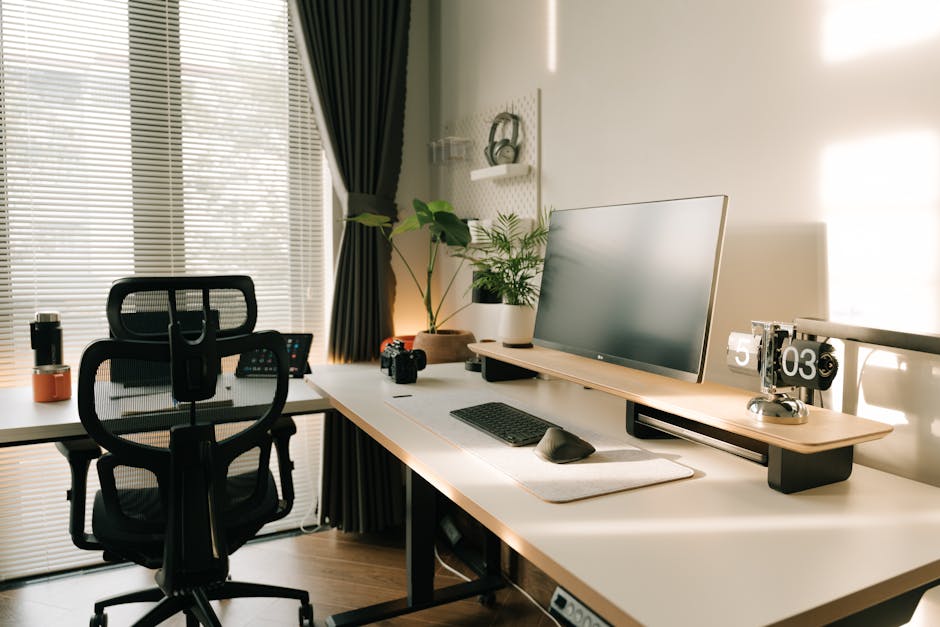
Getting the setup right is a process, not a single purchase. Here is how to build a dual-computer desk that stays functional well past the first week.
Start With a Full Cable Audit
Clear everything off the desk. Measure the cable run from each device to its connection point. Most desk runs are under 3 feet — but people use 6-foot cables because that is what came in the box. The excess loops and coils create most of the visual clutter.
Replace cables with the shortest length that works. Anker makes reliable braided options: 1m HDMI for $12, 1m USB-C for $10, 1m USB-A to USB-C for $8. Spend $30 on short cables before buying any new hardware. Mount a cable management tray beneath the desk surface and route all power bricks and excess cable through it — the J-channel style handles this for $16. The visual improvement is immediate and requires no new devices.
Position the KVM Device Before Positioning the Monitor
The AV Access KVM Switch 3-monitor version at $299.24 ships with a physical remote switcher. That remote is the key detail: the KVM unit itself can live tucked behind a monitor stand base, inside a cable tray, or on a small shelf beneath the desk surface — invisible from the working position. One press of the remote switches your keyboard, mouse, and all three monitors from laptop to desktop in under a second.
The 100W Power Delivery charges a laptop through the KVM dock — one USB-C cable runs from dock to laptop, carrying both power and display signal. The GbE ethernet port gives a MacBook Air (no native ethernet port) a stable wired connection without a separate adapter. The onboard SD card reader means memory cards from cameras connect directly to the dock, eliminating another cable from the desk surface. At $299.24, it replaces a laptop charger, a separate ethernet adapter, a USB hub, and a card reader.
The Five Peripherals That Earn Permanent Desk Space
- Dual monitor arm — The VIVO Dual Monitor Mount ($45) clamps to the desk edge and holds two screens on a single pole. It frees up the desk surface beneath both monitors and allows precise height and tilt adjustment. The single largest structural improvement per dollar on this list.
- Multi-device keyboard and mouse — Logitech MX Keys ($110) and MX Master 3 ($100) both support three-device Bluetooth pairing with a physical toggle button. Logitech Flow adds software-layer clipboard sharing between macOS and Windows — something hardware KVM alone cannot provide.
- Compact webcam — The Logitech C920 ($70) is still the benchmark for video calls under $100. It clips to a monitor arm and folds flat when not recording. For content creation requiring higher quality, the Elgato Facecam ($150) shoots 1080p60 with manual focus control and no autofocus hunting during takes.
- Monitor light bar — The BenQ ScreenBar Plus ($179) clips directly to the monitor, illuminates the desk without screen glare, includes a USB-A charging port, and has an analog brightness dial. One device that replaces a desk lamp and a charging cable.
- Height-adjustable desk frame — The Flexispot E7 frame ($380) pairs with any desktop surface, including the IKEA LINNMON board ($30). Two memory presets for sitting and standing heights. The motor is quiet enough to adjust mid-call without disrupting a meeting.
Tip: Before declaring the setup finished, record 30 seconds of video at your desk and watch it back. Every visible cable loop, blinking LED, and object without a functional purpose shows up on camera in a way it never does in person. Fix those details before they show up in the background of a client presentation or a YouTube video.
Which Setup Is Actually Worth the Money

For full-time remote workers switching between a laptop and a desktop daily: the KVM switch at $299.24 is the right buy. The 100W PD laptop charging, GbE ethernet, SD card reader, and three-monitor support are features that get used every single workday. The extender’s 328-foot Cat6 range is genuinely useful engineering — but irrelevant if both computers are sitting within arm’s reach of each other.
The extender earns its $359.99 in specific configurations: a tower PC kept in a closet to reduce desk noise, live streaming at 4K@120Hz where zero-latency matters, or a setup that needs audio extraction for speakers physically separated from the main machine. Its 4.9/5 rating reflects buyers who needed exactly this — not buyers who compromised.
A note on the overall investment: $299–360 feels significant for desk accessories. Compare it against what most remote workers spend on chairs ($300–600), standing desks ($380+), and monitors ($400–600). The KVM is what ties those investments together. A great monitor and a standing desk deliver less value if you’re still reaching behind the screen to swap cables manually. Think of it as infrastructure, not a peripheral.
What Cheap HDMI Switches Actually Cost You
The $30–60 HDMI switchers on Amazon handle video signal only. No keyboard or mouse sharing. No USB peripheral switching. No power delivery. Two full input setups remain on the desk — two keyboards, two mice, and double the cable count. The budget option is not a stripped-down KVM. It is a different product solving a different and simpler problem.
| Your Situation | Best Option | Price |
|---|---|---|
| Laptop + desktop, same desk, daily switching | AV Access 8K KVM Switch | $299.24 |
| PC tower in closet or separate room | AV Access 8K KVM Extender | $359.99 |
| MacBook only, need ports and wired ethernet | CalDigit TS4 Thunderbolt Dock | $229.99 |
| Single computer, cable organization only | Amazon Basics cable raceway + velcro ties | ~$24 |
| Two computers plus 4K@120Hz gaming or streaming | AV Access 8K KVM Extender | $359.99 |
The Logitech MX Keys and MX Master 3 pair well alongside either KVM solution — they add software-layer Bluetooth device switching and clipboard sharing between operating systems, which hardware KVM cannot handle on its own. At $210 combined, they cover the gap between what hardware solves and what software solves.